For Mac users, choosing project management software often involves a tough decision. Microsoft Project is a Windows-only desktop application, meaning Mac users are limited to the more basic web version, third-party file viewers, or the hassle of running Windows on their Mac via a virtual machine. This adds extra cost, setup complexity, and overall friction compared to using a tool designed for macOS.
Smartsheet, on the other hand, offers both a dedicated Mac desktop app and a fully functional browser experience, providing a seamless and native feel on macOS. It’s a top-rated alternative to Microsoft Project for Mac users and ranks among the best project management solutions for the platform. Let’s dive into a detailed comparison.
Smartsheet vs. Microsoft Project: At a Glance
| Feature | Smartsheet | Microsoft Project |
| macOS Native App | Yes, dedicated Mac app and web access. | No native desktop app for Mac. Use the web version (“Project for the Web”) or a Windows VM for the full client. |
| Best For | Collaborative teams, cross-functional work, templates, and automation. | Advanced schedule modeling, complex resource leveling, and heavy Microsoft 365 shops. |
| Ease of Use | Low-to-moderate learning curve with a familiar spreadsheet-like interface. | Steeper learning curve, especially for non-power users. The desktop client is feature-rich but complex. |
| Collaboration | Excellent real-time collaboration, sharable sheets/dashboards, comments, and automated alerts. | Collaboration is stronger in the web version; the desktop client is more isolated, often requiring other MS apps like Teams. |
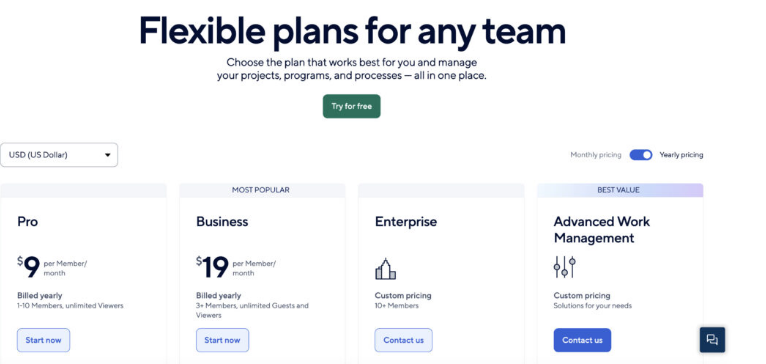
| Pricing | Straightforward subscription tiers (Pro, Business, Enterprise). | Complex licensing (Project Plan 1/3/5); the full desktop client often requires a separate license and a Windows VM. |
| Key Strengths | Strong integrations, automation, and user-friendly dashboards. | Powerful offline scheduling, advanced baselining, and deep resource management tools. |
Detailed Comparison
1. Setup and Everyday Use on a Mac
- Smartsheet: The experience is seamless. Download the Mac desktop app or log in through Safari or Chrome. There’s no need for extra software or workarounds. Its mobile apps keep you connected on the go.
- Microsoft Project: There is no way to run the full, desktop-class Microsoft Project natively on a Mac. Your only options are the simplified “Project for the Web” browser experience or the significant overhead of configuring a Windows virtual machine (using software like Parallels).
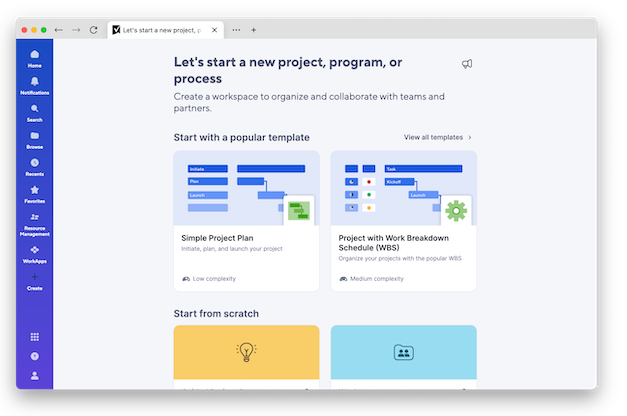
The Verdict: For a smooth, native macOS workflow without extra costs or complexity, Smartsheet is the clear winner.
2. Scheduling and Resource Management
- Microsoft Project: This is the industry standard for complex projects. It excels at detailed Gantt charts, critical path analysis, baselining, and sophisticated resource leveling. If your work requires advanced earned value management or multi-mode scheduling, Project’s desktop client is unmatched.
- Smartsheet: It offers excellent Gantt views and dependency tracking for most business scenarios. It focuses on practical, collaborative scheduling and enhances it with powerful dashboards and reporting, rather than ultra-granular modeling.
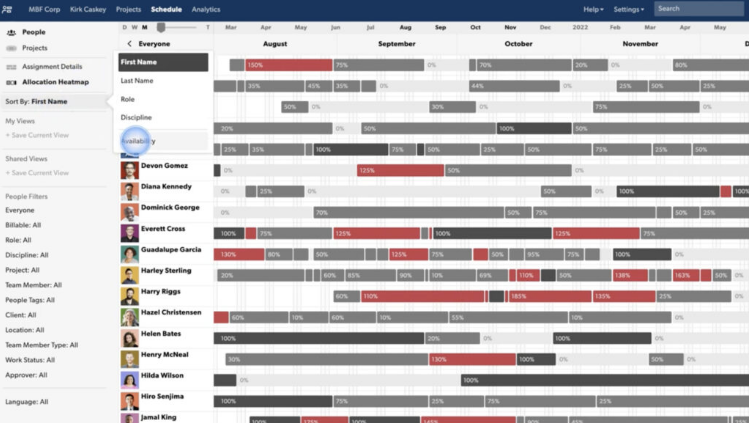
The Verdict: Power schedulers who need absolute top-tier modeling may still require Project via a VM. For most teams, Smartsheet’s capable scheduling combined with its collaboration tools is more than sufficient and far easier to use.
3. Collaboration and Automation
- Smartsheet: Built from the ground up for teamwork. It features cell-level comments, easy sharing, automated approval workflows, and dynamic dashboards that keep all stakeholders in the loop. Its spreadsheet-like interface is instantly familiar to most users.
- Microsoft Project: Collaboration is primarily handled through the integration with other Microsoft 365 tools like Teams and SharePoint. The desktop client itself is not a strong collaborative tool.

The Verdict: For distributed Mac teams, Smartsheet provides built-in, lightweight collaboration features that don’t force you to jump between multiple applications.
4. Integrations with Other Tools
- Smartsheet: Offers broad and deep integrations with popular tools like Slack, Google Workspace, the Microsoft ecosystem, and various cloud storage providers, plus an open API for custom connections.
- Microsoft Project: It is most powerful when your organization is fully committed to the Microsoft 365 universe, with deep ties to Teams, SharePoint, and Azure AD.
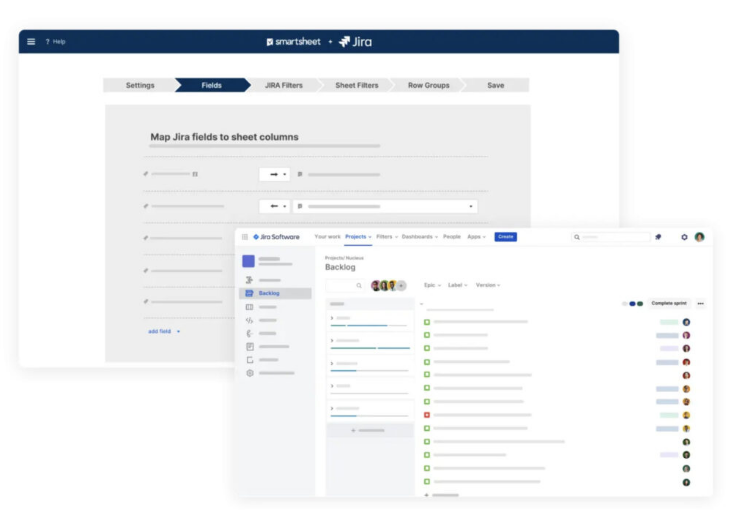
The Verdict: If your workplace uses Google Workspace or a mix of different tools, Smartsheet integrates more smoothly and flexibly for Mac users.
Which Tool Is Right for You?
Choose Smartsheet if you:
- Want a native Mac experience without the headache of running Windows.
- Value fast onboarding, easy collaboration, and intuitive dashboards.
- Need strong automation, reporting, and template libraries.
- Work with team members from non-technical departments like marketing or HR.
Choose Microsoft Project if you:
- Absolutely require advanced scheduling features like detailed baselining and earned value management.
- Are deeply embedded in the Microsoft 365/Teams/SharePoint ecosystem.
- Have certified project schedulers who need the power of the desktop client.
- Are willing to manage the cost and complexity of a Windows virtual machine on your Mac.
Considering a Switch from Project to Smartsheet?
Migrating requires a planned approach. Here’s a quick checklist:
- Audit Your Current Use: List all your MPP files and note critical features like custom fields, baselines, and macros.
- Check Feature Parity: Smartsheet handles Gantt charts and dependencies well, but advanced resource leveling and baselining work differently.
- Export and Import: Export your Project files to CSV or Excel format, then import them into Smartsheet. Be prepared to manually rebuild some custom fields and formulas.
- Rebuild Reports and Automations: Use Smartsheet’s dashboards to replace old reports and set up new automated workflows for alerts and approvals.
- Train Your Team: Conduct hands-on sessions focusing on Smartsheet’s sharing, templates, and collaboration features.
- Run a Pilot: Start with one or two projects to test the new workflow before rolling it out completely.
Potential Migration Hurdles:
- Advanced metrics and complex baselines don’t transfer directly.
- Custom fields and macros will likely need manual re-creation.
- Be sure to factor in the cost savings from canceling Project and Windows VM licenses.
Final Recommendation
For the vast majority of Mac users and teams, Smartsheet delivers a faster, more integrated, and less frustrating experience. It removes the technical barriers of virtualization and empowers teams to collaborate effectively.
However, if your organization’s core function relies on the most advanced, desktop-level schedule modeling and your team is Windows-based, Microsoft Project remains the gold standard—just be prepared for the extra effort to run it on your Mac.
Frequently Asked Questions
Can I open .MPP files directly in Smartsheet?
Not with perfect results. The best method is to export your Project plans to Excel or CSV format from Microsoft Project first, then import that file into Smartsheet. You will likely need to do some manual cleanup and rebuilding of complex elements.
Is there a native version of Microsoft Project for Mac?
No. Microsoft does not offer a desktop version of Project for macOS. Mac users must use the web-based “Project for the Web” or run the Windows desktop client through a virtual machine.
Which option is more cost-effective for small Mac teams?
Smartsheet often has more predictable and lower total costs. Its per-user subscription is straightforward, while using Microsoft Project on a Mac requires paying for both the Project license and a Windows license/virtualization software, which can add up quickly.
About the Author