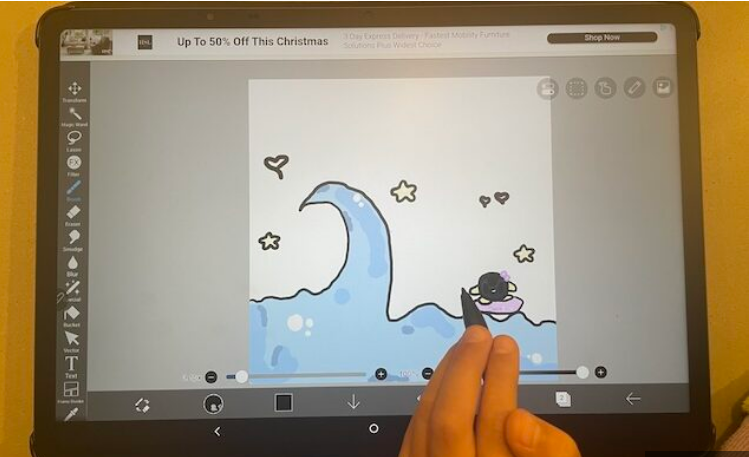
Many artists wonder if they can run the popular illustration app, Procreate, directly on a Mac. The short answer is no—Procreate remains an exclusive, touch-first app designed for iPad and Apple Pencil. But don’t worry; if you’re set on using Procreate with your macOS system, there are several reliable workarounds to mirror your iPad’s display to your Mac.
This guide will walk you through the best methods available.
Is There a Procreate App for Mac?
Currently, there is no native version of Procreate for macOS. The app is built specifically for the iPad’s touch interface and Apple Pencil integration. However, you can still use Procreate with your Mac by connecting your iPad and using it as a dedicated drawing display.
Here’s a quick look at the main approaches:
- Sidecar: Apple’s own wireless screen-mirroring tool.
- HDMI or Cable Connection: A wired setup for minimal latency.
- Third-Party Apps: Software like AstroPad or Duet Display.
Tip: If your goal is to use your iPad as a drawing tablet for Mac apps like Photoshop or Illustrator, check out our guide on using an iPad as a graphics tablet for Mac.
1. Use Sidecar for Wireless Procreate Mirroring
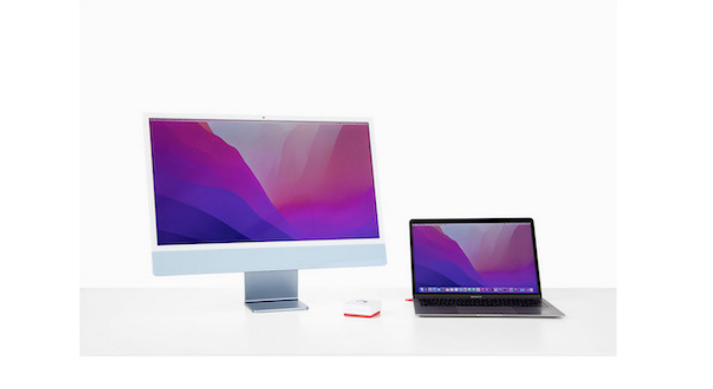
Sidecar is the simplest method for Apple users. It turns your iPad into a wireless secondary monitor, allowing you to draw in Procreate on your iPad while your artwork appears live on your Mac screen.
What You’ll Need:
- macOS Catalina or newer and iPadOS 13 or later.
- Both devices must be signed into the same Apple ID.
- Bluetooth, Wi-Fi, and Handoff enabled.
Setup Steps:
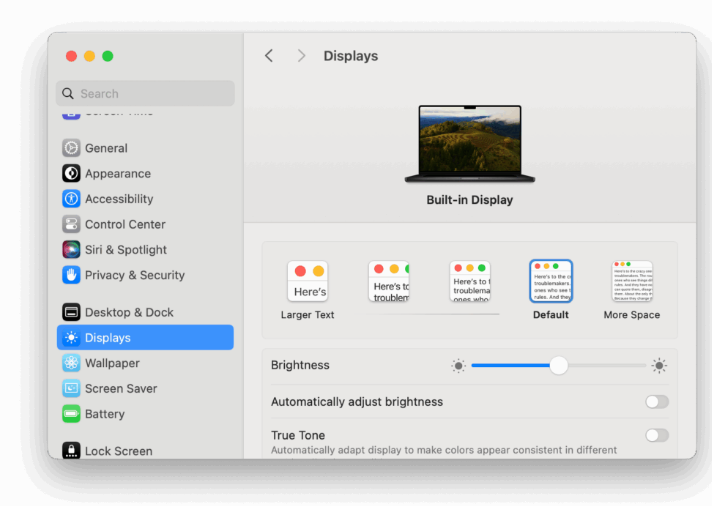
- On your Mac, open System Settings → Displays → Add Display → and select your iPad.
- Choose Mirror Display to see the same content on both screens.
- Open Procreate on your iPad—your canvas will now be visible on the Mac.
You’ll still draw directly on the iPad, but this setup is perfect for recording tutorials or presenting your work on a larger screen.
2. Connect via HDMI or Adapter Cable
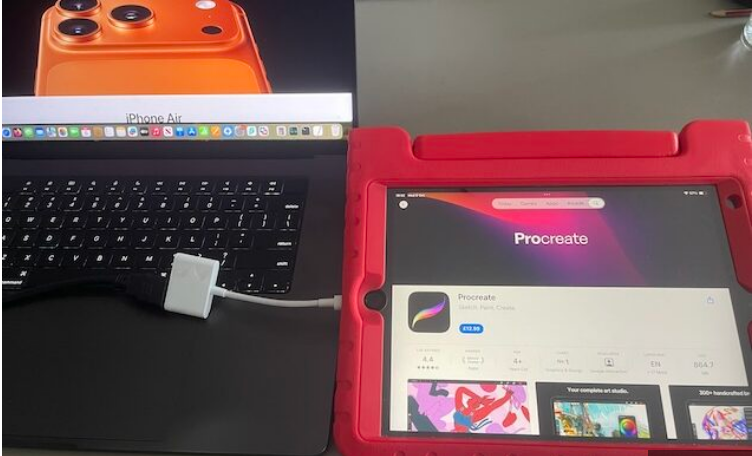
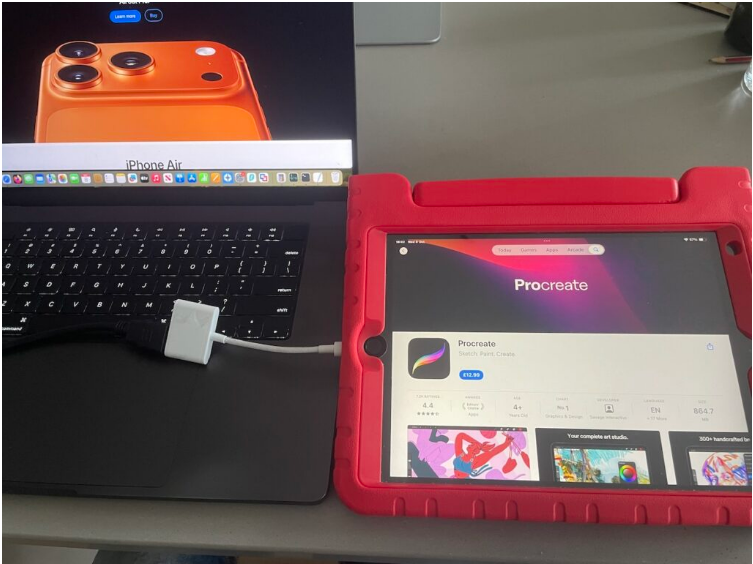
For a wired connection that avoids Wi-Fi lag, you can mirror your iPad’s display using a physical cable. Note that newer MacBooks don’t have HDMI ports, so you may need an external monitor or a capture card.
What You’ll Need:
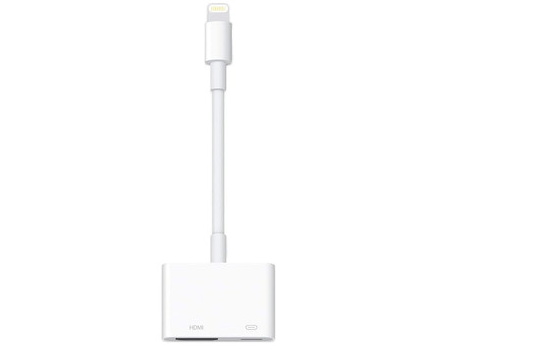
- A USB-C to HDMI or Lightning to HDMI adapter (depending on your iPad model).
- An HDMI cable and, if needed, an external display.
Setup Steps:
- Connect the adapter to your iPad, then plug the HDMI cable into your external monitor or capture card.
- On your iPad, go to Settings → Display & Brightness → Screen Mirroring and select your display.
- In Procreate, enable Project Canvas to keep your artwork centered while you zoom or pan.
This method offers a stable, low-latency connection—ideal for live streaming or drawing on a big screen.
3. Try Third-Party Mirroring Apps
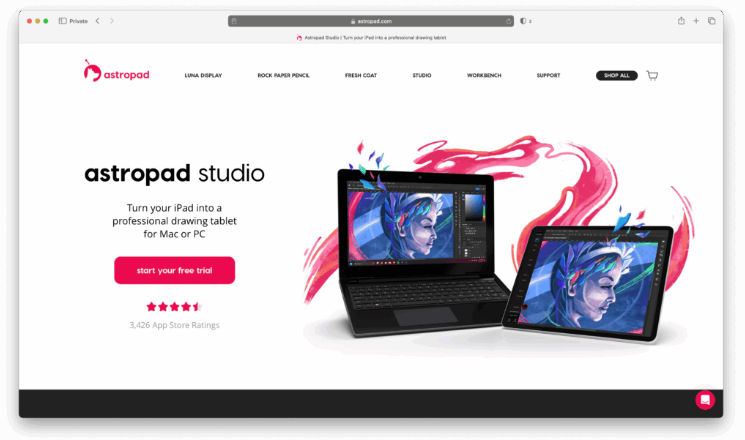
If Sidecar isn’t compatible with your devices, third-party apps like AstroPad Studio, Duet Display, or EasyCanvas are excellent alternatives. These apps not only mirror your iPad screen but also support pressure sensitivity and tilt with the Apple Pencil.
Most are paid, but they offer professional features tailored to artists. Here’s a brief comparison:
| App | Connection Type | Key Features |
| AstroPad Studio | USB / Wi-Fi | Artist-optimized, supports Pencil pressure & tilt, custom shortcuts |
| Duet Display | USB | Low-lag, extends Mac display to iPad |
| EasyCanvas | USB / Wi-Fi | Affordable, includes Pencil support |
4. Native Mac Alternatives to Procreate
If you prefer drawing directly on your Mac without an iPad, consider these powerful Procreate alternatives:
- Affinity Designer: A professional-grade vector and raster design app.
- Krita: Free, open-source digital painting software with customizable brushes.
- Clip Studio Paint: Great for comics, manga, and animation.
- Corel Painter: Advanced natural-media brushes for professional artists.
For more options, check out our full list of the best graphic design software for Mac.
Wrapping Up
While you can’t install Procreate directly on your Mac, you’re not out of options. You can:
- Use Sidecar for a seamless Apple ecosystem experience.
- Try an HDMI or cable connection for a lag-free setup.
- Explore third-party apps like AstroPad for more control and features.
Your best choice depends on your setup—whether you’re using a MacBook Pro or an external monitor, your tolerance for lag, and what accessories you already own. Until Procreate for Mac becomes a reality, these methods let you bring one of the best drawing apps to your Mac workflow.
About the Author