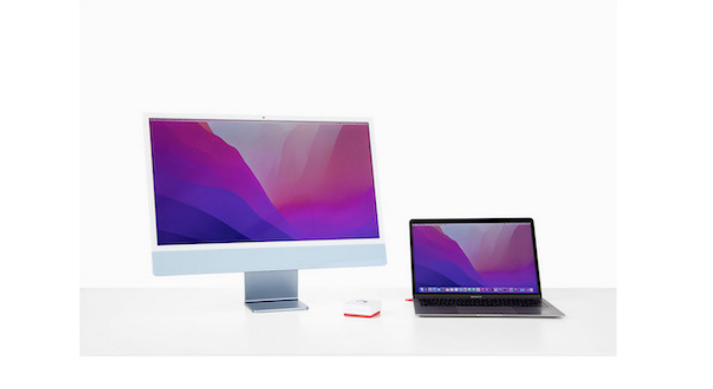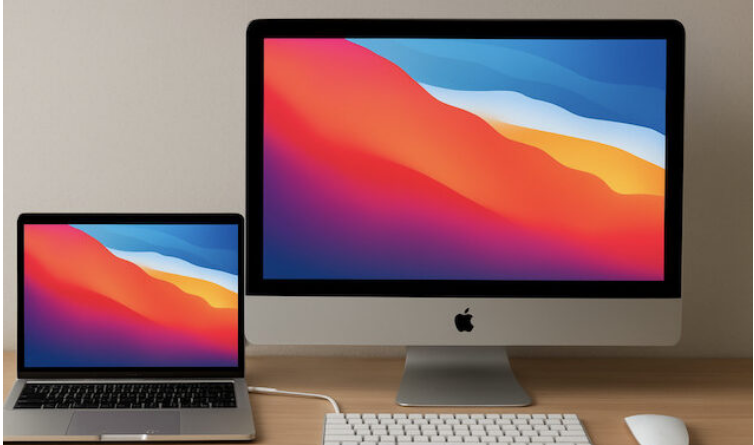
If you want to use an iMac as a secondary display for another Mac or MacBook, AirPlay — a built-in feature in macOS — offers a free, straightforward solution.
Apple’s legacy Target Display Mode (TDM) only works with select Intel iMacs from 2009 to 2014, paired with Intel Macs running macOS Catalina or earlier. Modern Macs, including all Apple Silicon (M-series) models, don’t support TDM. Instead, AirPlay to Mac lets you turn a compatible iMac into a wireless (or wired) external display with ease.
AirPlay comes preinstalled on macOS Monterey and later, enabling you to either mirror your primary Mac’s screen or extend it to another Mac — including an iMac.
What You’ll Need to Use AirPlay with an iMac
To set up your iMac as an external display via AirPlay, you’ll need specific hardware, software, and network configurations:
1. Hardware Requirements
- Primary (Source) Mac: MacBook Pro/Air (2018 or newer)
- Mac mini (2020 or newer)
- iMac (2019 or newer)
- Mac Pro (2019 or newer)
- iMac Pro (2017)
- Secondary (Display) iMac: Officially supported: iMac 2019 or later running macOS Monterey or newer, plus iMac Pro 2017
- Unofficial support: iMacs as old as 2011 can work if you upgrade or “patch” macOS using OpenCore Legacy Patcher (OCLP)
2. Software Requirements
- Display iMac: macOS Monterey (12) or later
- Source Mac: macOS Mountain Lion (10.8) or later for screen mirroring; macOS Mavericks (10.9) or later for extended desktop mode
3. Network Requirements
- Wi-Fi and Bluetooth enabled on both Macs
- Both devices connected to the same Wi-Fi network (or directly via Thunderbolt/USB-C cable for lower lag)
AirPlay Performance & Limitations
- Resolution: AirPlay to Mac tops out at 1080p (Full HD) with a 16:9 aspect ratio. It doesn’t support Retina or 5K resolution, even if your iMac has a 4K/5K screen.
- Compression & Lag: AirPlay compresses the signal, so text and fine details may appear softer. You might notice slight input lag when typing, gaming, drawing, or using graphic design tools.
- Ideal Use Cases: AirPlay works great for extra screen space, presentations, or media playback. It’s not ideal for pixel-perfect design work or fast-paced gaming.
Step-by-Step Guide: Set Up AirPlay for iMac as External Display
1. Prepare the Display iMac
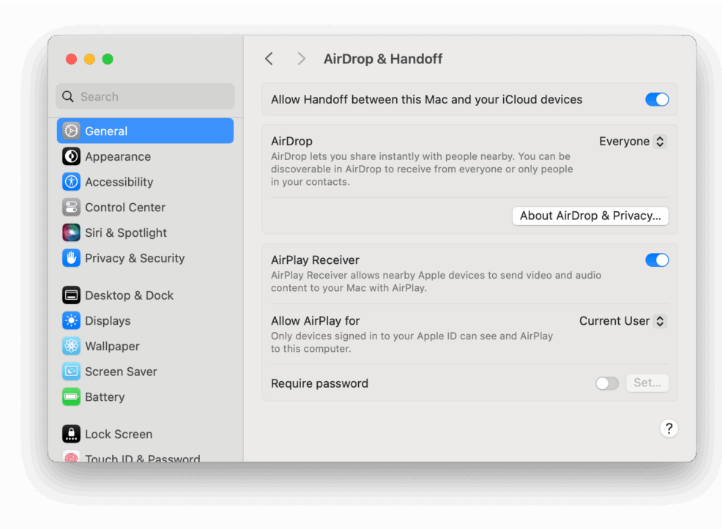
- Enable AirPlay Receiver: macOS Monterey: Go to Apple Menu → System Preferences → Sharing → Toggle on AirPlay Receiver
- macOS Ventura or later: Go to Apple Menu → System Settings → General → AirDrop & Handoff → Toggle on AirPlay Receiver
- Set Connection Permissions: Under “Allow AirPlay for,” select Current User (recommended for security). For extra protection, add a password if others use your network.
2. Prepare the Source Mac
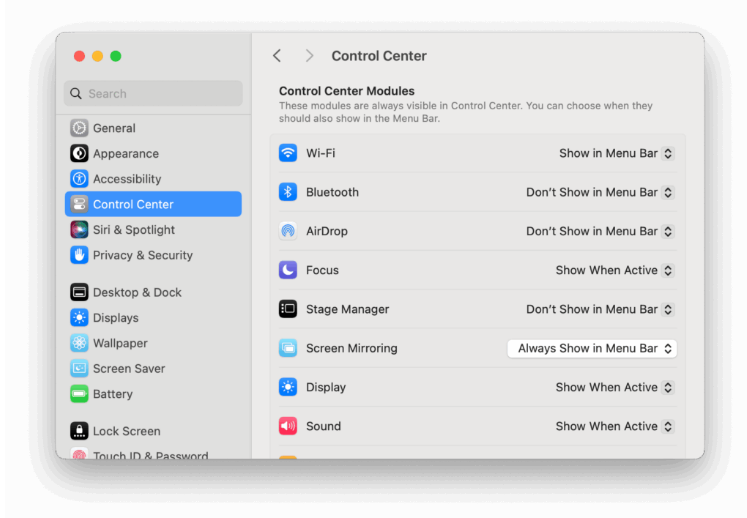
- Add Screen Mirroring to the Menu Bar: Go to Apple Menu → System Settings/Preferences → Control Center (or Dock & Menu Bar in Monterey) → Enable Screen Mirroring for quick access.
- (Optional) Use a Wired Connection for Less Lag: Connect the two Macs with a Thunderbolt or USB-C cable for faster, more responsive performance. Wired connections (especially with Apple Silicon Macs) reduce lag significantly compared to Wi-Fi. If you can’t use a cable, connect both Macs to the same 5 GHz Wi-Fi network and minimize other network traffic.
3. Connect and Extend Your Display
- On the source Mac, click the Screen Mirroring icon in the menu bar.
- Select your iMac from the list of available devices.
- Choose an option: Mirror Display: The iMac shows the same content as your source Mac.
- Use as Separate Display: The iMac acts as an extended desktop (best for extra workspace).
- Arrange Displays (if needed): Go to System Settings → Displays → Arrangement → Drag the blue rectangles to match your physical screen layout.
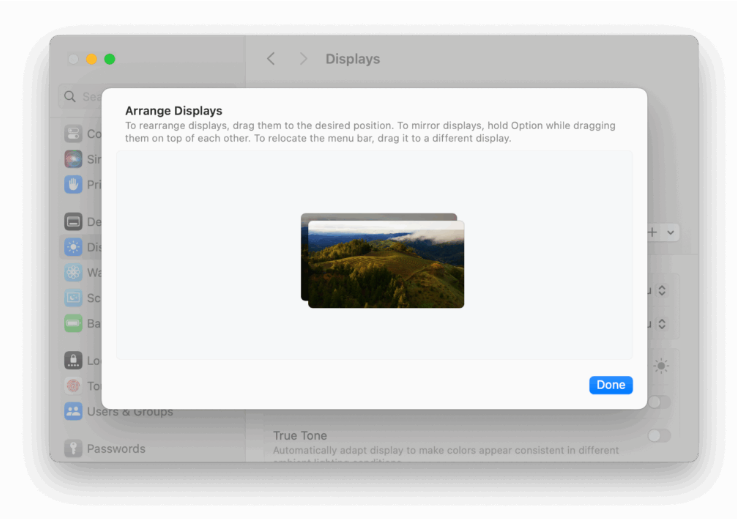
4. Adjust Quality (Optional)
- For sharper output, use Wi-Fi 6 or a wired connection.
- Pause network-heavy tasks (like downloads or streaming) to smooth out streaming.
5. Disconnect
- Click the Screen Mirroring icon in the menu bar.
- Select Turn AirPlay Off to stop using the iMac as an external display.
Tips for Optimal Performance
- Use Ethernet or Wi-Fi 6: Wired connections drastically reduce lag and improve clarity.
- Adjust Resolution: Temporarily lower the iMac’s resolution to reduce bandwidth use and boost responsiveness. USB connections may support up to 2560×1440, 2880×1620, or even 3840×2160 (4K) on some 5K iMacs (varies by model and macOS version). Apps like BetterDisplay can unlock HiDPI scaling for crisper text.
- Enable “Full Quality”: If you have a fast network, use this option for sharper visuals.
- Avoid Bluetooth Lag: Switch to a wired or USB wireless mouse/keyboard if you notice stuttering with Bluetooth peripherals.
- Optimize Network: If using Wi-Fi, disable internet access on the display iMac to reduce bandwidth competition.
- Audio Sync: Audio may drift slightly — use the source Mac for audio output if lip-sync is important.
Troubleshooting Common Issues
- iMac not showing up: Ensure AirPlay Receiver is enabled on the display iMac, both devices are on the same network or Apple ID, and reboot if necessary.
- Blurry text: Use “Use as Separate Display,” enable HiDPI scaling (via BetterDisplay), and test different cables.
- No high-resolution options: Older iMacs may have USB 2.0 ports — try high-speed ports or a different cable.
Alternative Methods
If your Macs, software, or network don’t meet the AirPlay requirements, consider these alternatives:
- Luna Display: A third-party dongle/software tool that supports higher resolutions (up to 5K) with less compression than AirPlay.
- Wired AirPlay: While it uses a cable, it still caps at 1080p resolution.
For more details on these options, check out guides focused on using iMacs as external displays for Macs.
Summary
AirPlay won’t match the pixel-perfect sharpness of the old 5K Target Display Mode, but it’s Apple’s official way to use a modern iMac as an external display for Apple Silicon or Intel Macs.
With the right cable (and a patched OS if you’re using an older iMac), AirPlay can turn even a 10-year-old iMac into a usable secondary display — often at 1440p to 4K — with minimal lag when wired. It’s not as good as a native 5K Thunderbolt display, but it’s a free, practical way to extend your iMac’s lifespan.
If you need higher resolutions or better performance, third-party tools like Luna Display are worth exploring.
About the Author